Duenote

Focused notes, powerful insights.

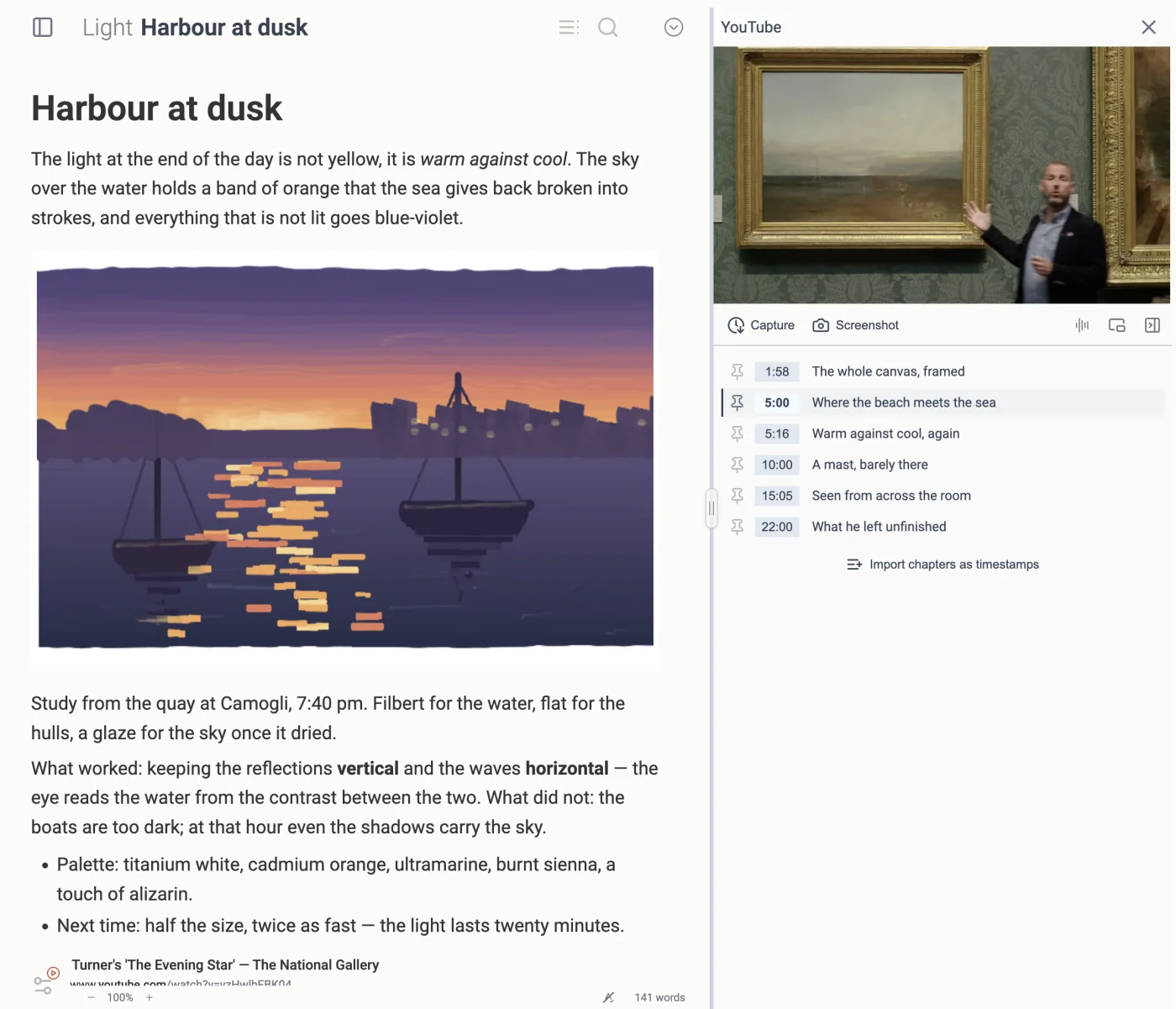
Duenote with a note open on the left and a YouTube video, with its captured moments, open in the right-hand panel

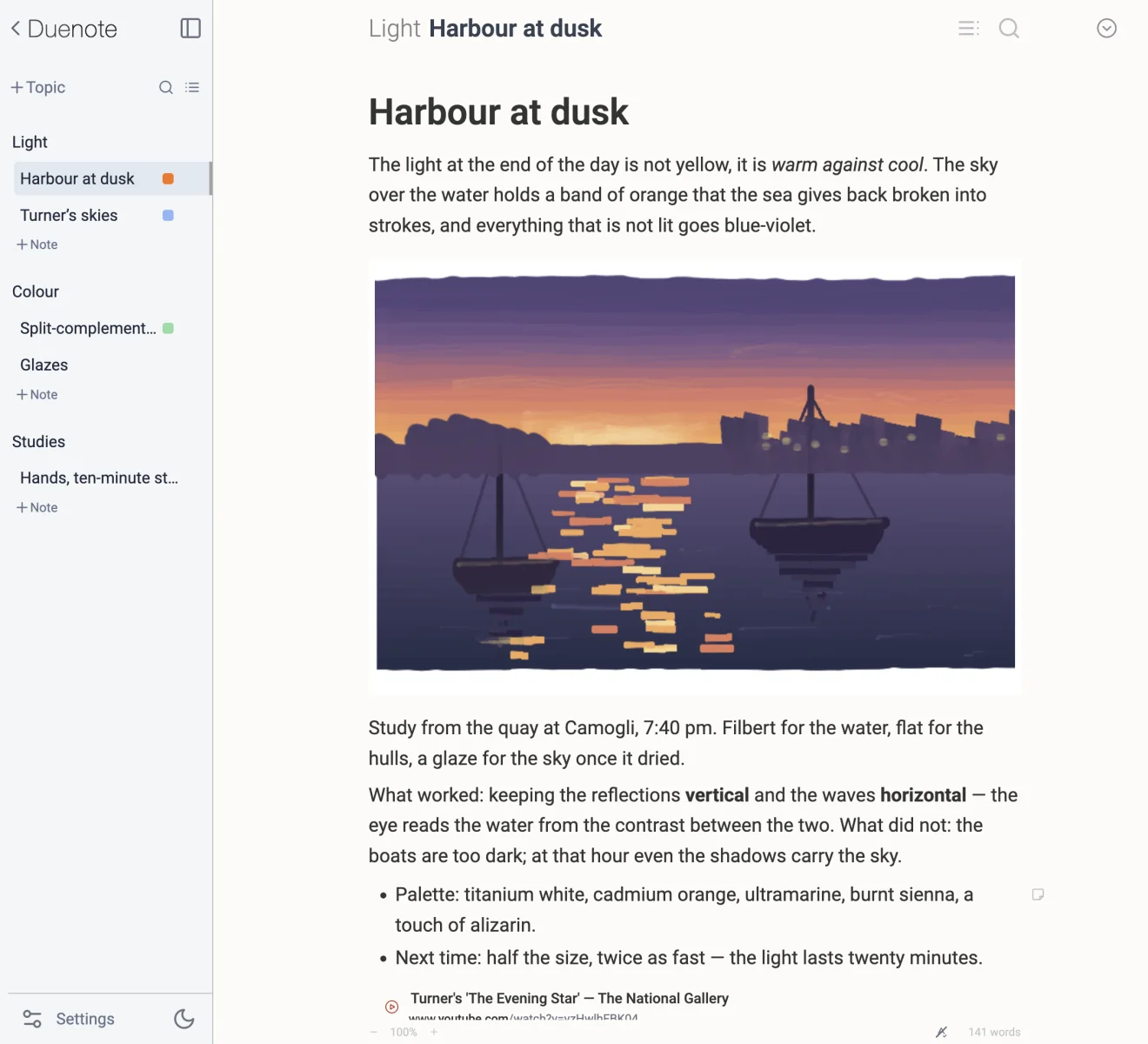
Duenote is a desktop app built for writing without distractions, connecting your ideas and exploring your sources of inspiration.

Version 0.6.2 · No account, no subscription, nothing to sign up for.

One thing at a time

Built to keep your focus on one source at a time.

Writing that keeps up

Several ways to write and format, so inspiration never has to wait.

Made for revising

Bookmarks and notes make going back over it simpler and more natural.

On your computer

No account, no server, nothing to sync. Your notes are yours.

The split view

Sources of inspiration.

A right-hand panel for your sources — and for each kind of source, tools made for exploring it.

  • A web page.
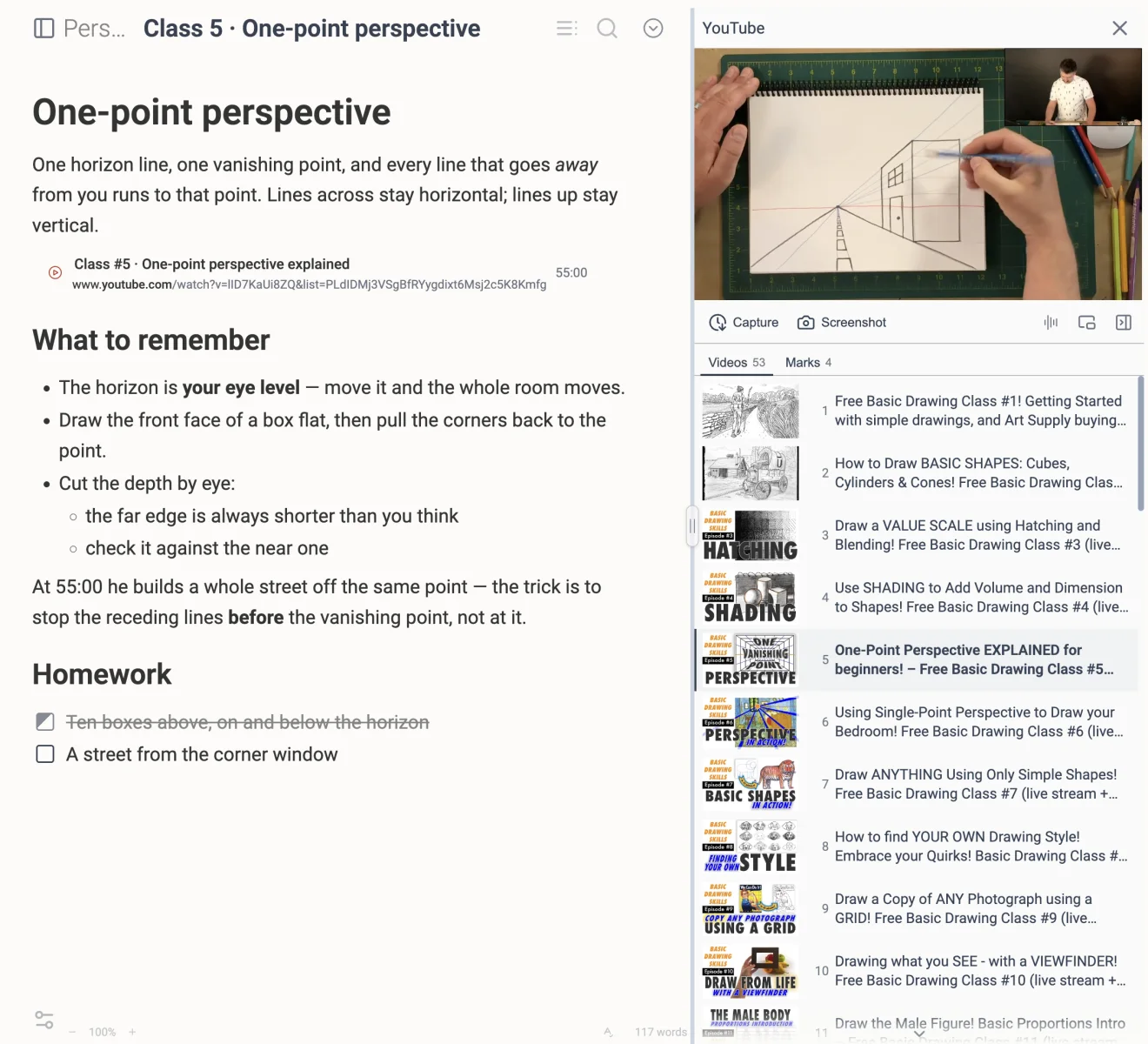
  • A YouTube video or playlist.
  • A minimal PDF reader.
  • Another of your notebooks.
  • Another note.
A YouTube playlist open in the right panel beside a note, the current talk playing above the list of the other videos in it
A note in the Duenote editor with an annotated graph on the canvas, its numbered markers explained underneath, and a formula set into the text

Writing

Writing that keeps up with you.

What matters most is starting to write. Duenote offers several ways to format: use Markdown when you want to go fast, or add blocks with the “/” picker. All of it is built so you can focus on what counts: the flow.

Tables

Build one in the note, or paste one straight out of your spreadsheet. Rows and columns are added and removed from the edges.

Formulas

Mathematical notation, written and set properly, for the ideas that words are the wrong tool for.

Canvas

Pen, eraser, shapes, arrows and numbered markers, for the times a drawing explains it faster than a paragraph.

Images

Paste a screenshot or drag a file in. Any image can be drawn on to highlight a detail or add an arrow, then left exactly as it was.

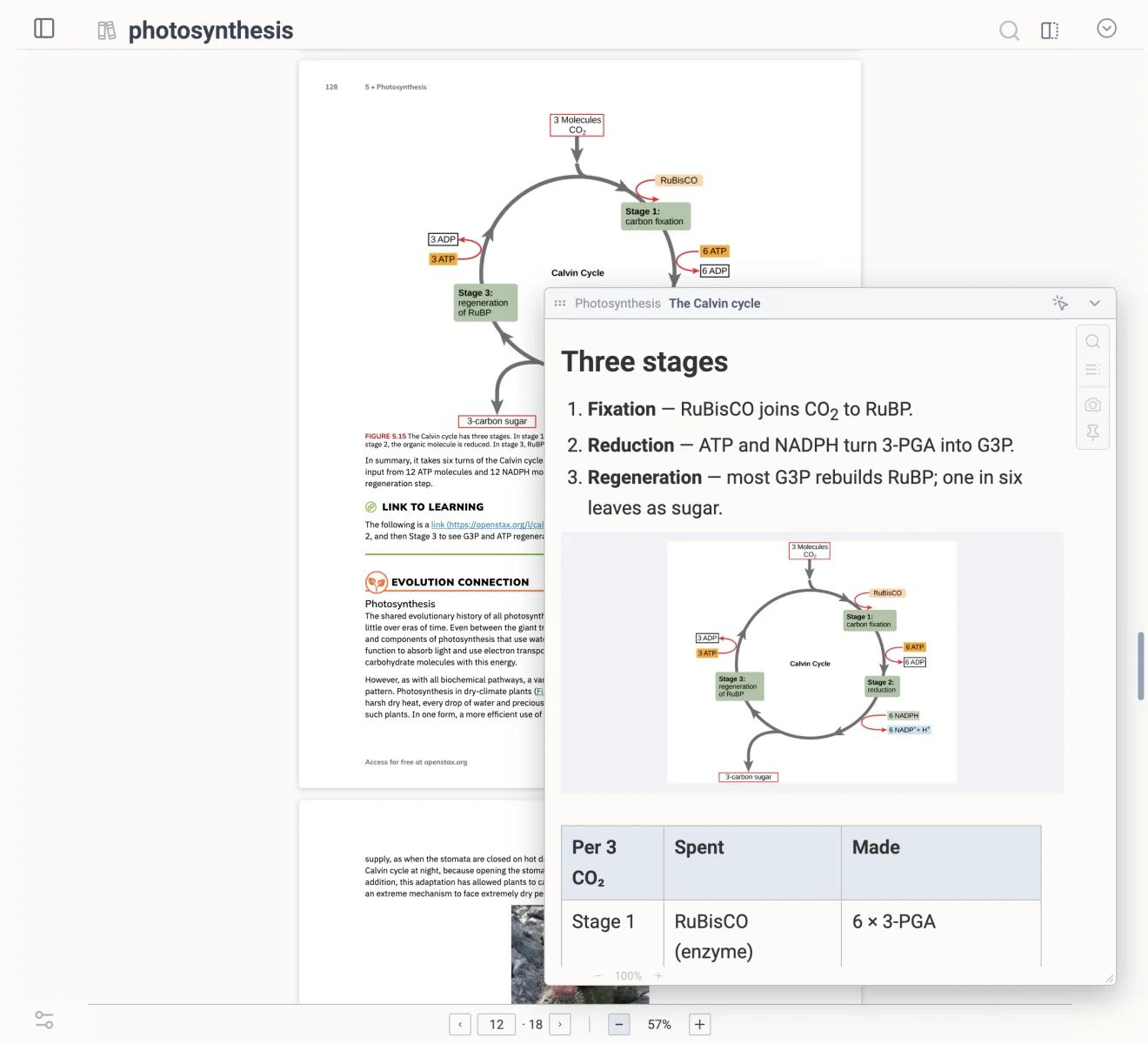
A PDF open in Duenote’s reader beside the note, with the page and zoom controls at the foot of it

Library

Your PDFs and your notebooks, side by side with the note.

Keep the documents a notebook is built on inside it, and read them without leaving what you are writing.

  • Take screenshots straight from the PDF reader and they are added to your note.
  • Pin the page you are on into the note, so you can find your way back to it.
  • Explore your Duenote notebooks from the library, reaching the index, the bookmarks and the notes.
  • Pick a different background colour for reading, and tell at a glance what you are reading from what you are writing.

Revising

Mark it once. Come back to it later.

Some paragraphs matter more than others. Ideas turn up while you are writing about something else, things get forgotten, and things are worth improving later. That is what side notes and bookmarks are for.

Side notes

A remark that goes beside the text: an aside, a doubt, a reminder of where an idea came from, or a favourite line.

Bookmarks

Highlight the line and it joins the bookmarks panel, ready to return to. And when you read a whole notebook from the library, everything you marked in it sits right next to the index.

The bookmarks panel beside a note, listing the lines marked in it with the search box above them
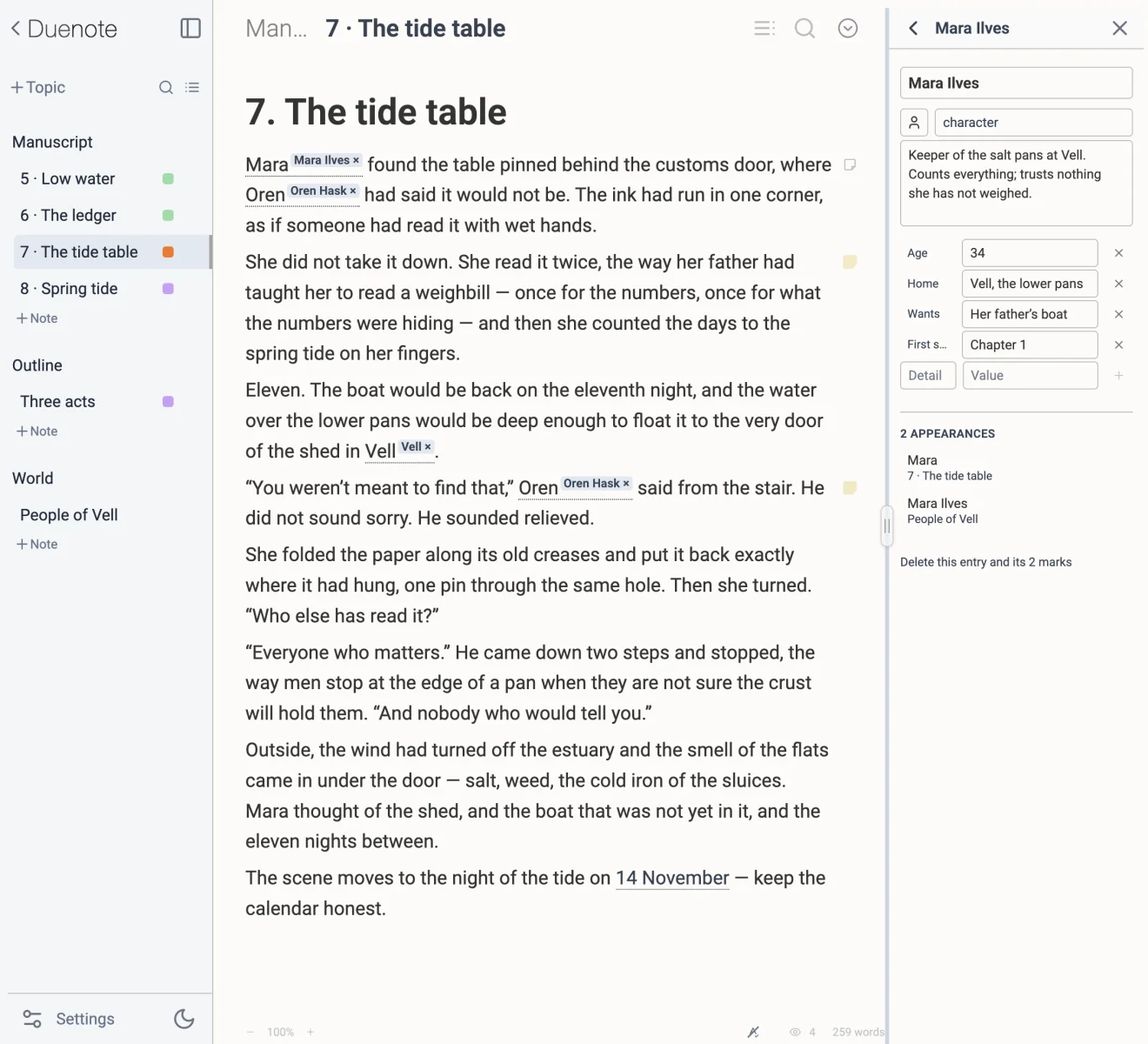
A linked note opened in the side panel, read beside the note that points to it

Links

Notes that point to other notes.

Ideas connect to one another, and so do notes. Start a link in the middle of a sentence and a picker appears with your notes in it; keep typing to narrow it down.

  • Point at a whole note, or at one particular section inside it.
  • Link the sections of the note you are already writing, to find your way around a long one.
  • A link opens in the side panel, so you can read it without losing your place — or in the editor, when you mean to stay.

And the rest of it.

The quiet things you only notice when they are missing.

Notebooks, topics, notes

Three levels and no more. Sort them alphabetically, or drag everything into the order you actually read it in.

Search that keeps up

Filter topics and notes by title as you type, and search inside the note you are on.

Archive, not delete

Notes and whole notebooks can be set aside and brought back later. Nothing disappears by accident.

Light and dark

Two themes, and four text sizes to go with them.

Spell check

Pick every language you write in — a word is only flagged when none of them recognise it. A notebook can keep its own.

English, Spanish, Italian

The whole app, and the guide it comes with, in each of them.

Export a notebook

As text or as PDF; one folder per topic, a single archive, or one file with an index. The PDFs you keep with it are optional.

Export a note

Any single note becomes a PDF, exactly as it looks on screen.

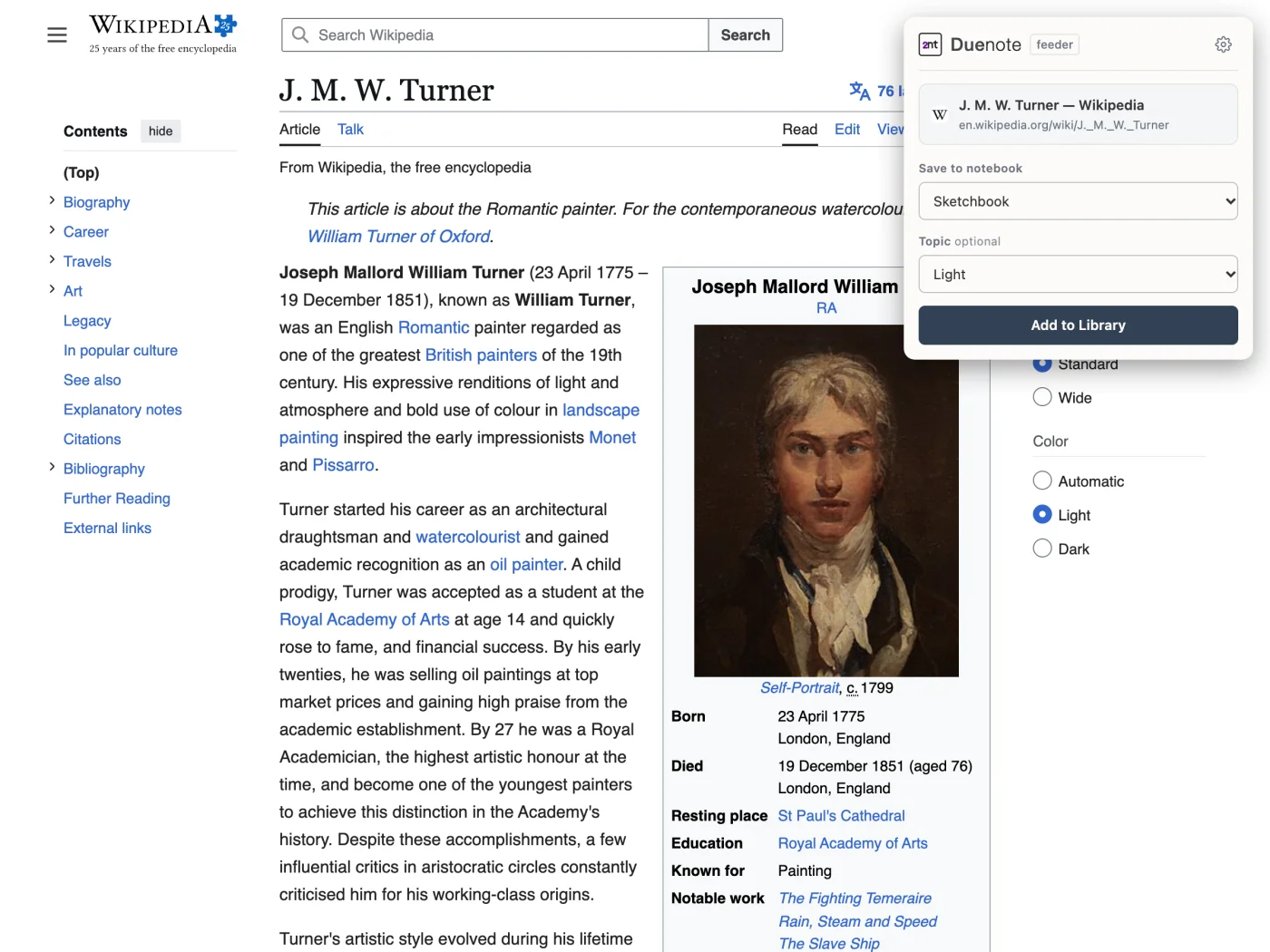
Browser extension

Send links and videos from your browser straight into the notebook’s feed.

Back to top